Changing the firebase notification icon in Flutter.

Product Development as an Expertise Since 2015 Founded in August 2015, we are a USA-based Bespoke Engineering Studio providing Product Development as an Expertise. With 80+ satisfied clients worldwide, we serve startups and enterprises across San Francisco, Seattle, New York, London, Pune, Bangalore, Tokyo and other prominent technology hubs.
Adding custom icons to some or all of your notifications. Icons are a way to provide a more unique, branded experience for your app.
Let's see how we can change the notification icon when the app is in background and notification received.
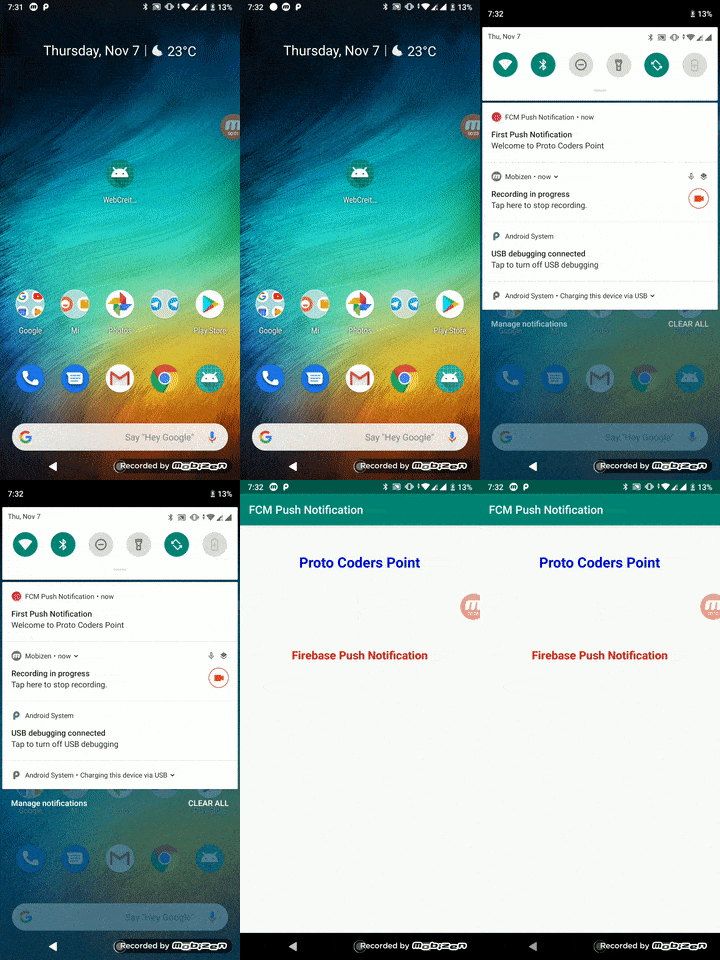
Setting a custom default icon allows you to specify what icon is used for notification messages if no icon is set in the notification payload. Also, use the custom default icon to set the icon used by notification messages sent from the Firebase console.
Let's start: first Add icon inside the drawable folder for notification icon.
Note: The notification icon which you want to add should be transparent. If the transparent icon is not added, then by default grey icon is getting display even you followed all steps properly.
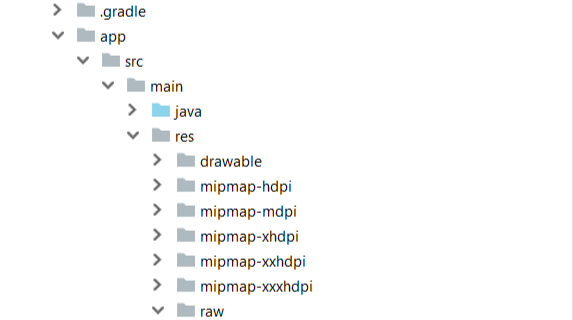
3. The folder structure is shown below:
(flutter_app_name > android > app > src > main > res >drawable > notification_icon.png)
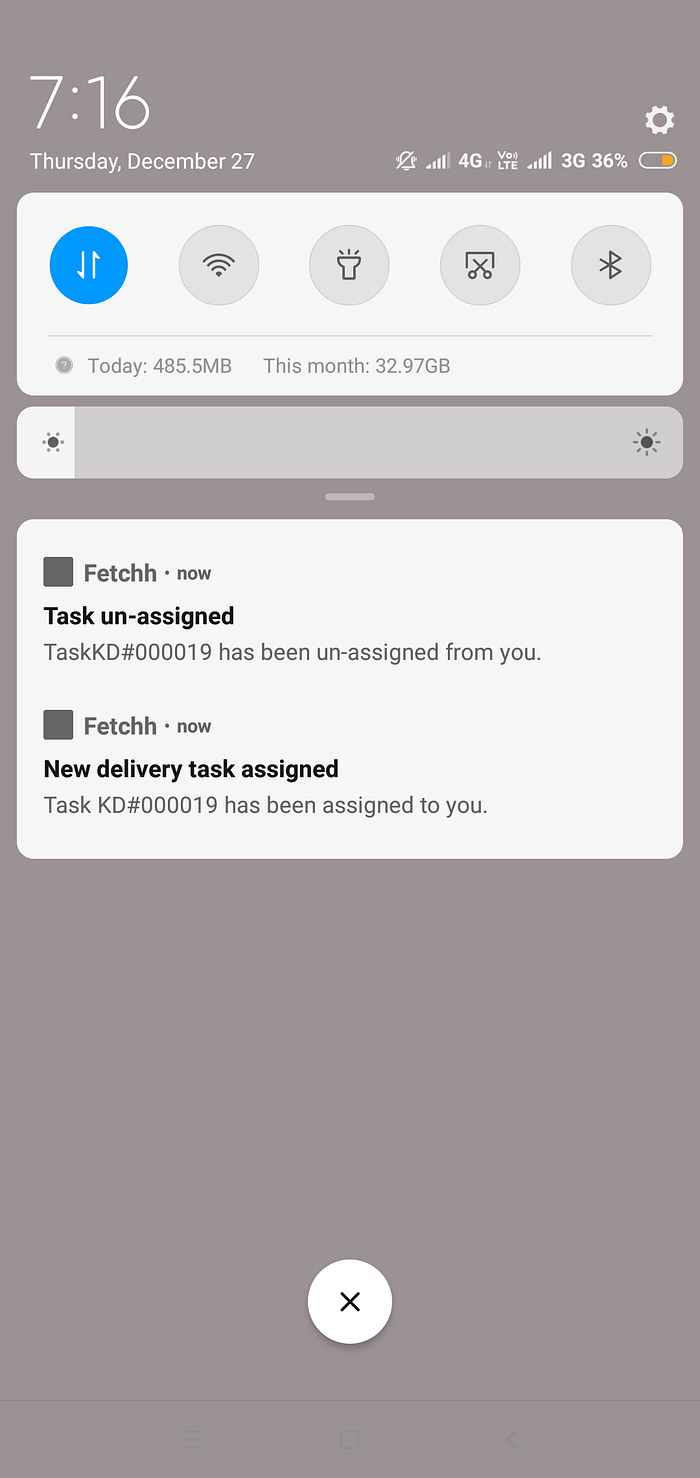
4. When no icons are set for incoming notifications, firebase will take the default icon and shows a notification.
5. To override the default icon add below code into your Android manifest file.
Also, you can provide color for the icon.
<application
    android:allowBackup="false"
    android:name="io.flutter.app.FlutterApplication"
    android:label="App_name"
    android:icon="@mipmap/launcher_icon">

<meta-data
        android:name="com.google.firebase.messaging.default_notification_icon"
android:resource="@drawable/transparent" /><meta-data
    android:name="com.google.firebase.messaging.default_notification_color"
    android:resource="@color/colorPrimary" />
6. For color, we have to add that color in colors.xml file inside the values folder, so create a file inside the values folder.
The file path should be:
app > src > main > res > values > colors.xml
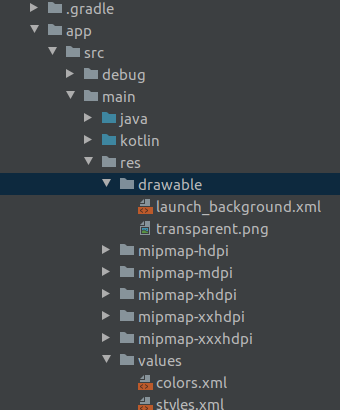
so, for adding color to notification icon we have to add color in color.xml file which we have added in values folder.
<?xml version="1.0" encoding="utf-8"?>
<resources>
<color name="colorPrimary">#e26338</color>
</resources>
7. Add your image with a transparent background.
Disadvantage: If you upload a colored version, you will get a dark grey icon, which would look nasty. If you don’t have a white version of your logo, get it designed.
In this way, you can change the notification icon with the color you want.


